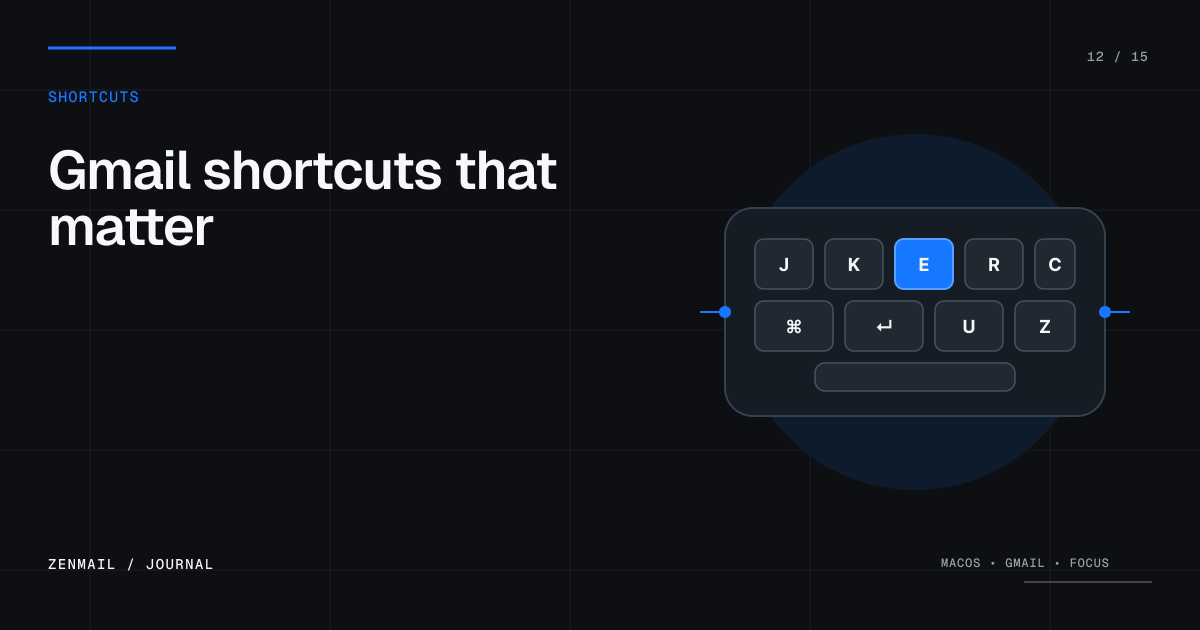
The most useful Gmail keyboard shortcuts on a Mac are J and K to move between conversations, O or Enter to open, E to archive, R to reply, A to reply all, F to forward, C to compose, / to search, G then I to return to the inbox, and ? to open shortcut help. Enable shortcuts once per Gmail account before expecting them to work.
How to enable Gmail keyboard shortcuts
- Open Gmail on a computer.
- Select Settings, then See all settings.
- Under General, find Keyboard shortcuts.
- Choose Keyboard shortcuts on.
- Save changes at the bottom of the page.
The setting is account-specific. Repeat it for each Gmail or Google Workspace account. Google’s official shortcut reference is the authority if a key changes.
Essential navigation shortcuts
- J: move to the next or older conversation in the list.
- K: move to the previous or newer conversation.
- O or Enter: open the selected conversation.
- U: return to the conversation list.
- G then I: go to the inbox.
- G then S: go to starred conversations.
- /: place the cursor in Gmail search.
- ?: open Gmail’s keyboard shortcut help.
J and K move selection; they do not always open the conversation. If the keys scroll the page or type into a field, check that focus is not inside search, compose, or another text control.
Essential triage shortcuts
- E: archive the selected or open conversation.
- #: move it to Trash; on many Mac keyboards this is Shift-3.
- Shift-I: mark as read.
- Shift-U: mark as unread.
- V: open the Move to menu.
- L: open the Label as menu.
- S: add or remove a star.
- Z: undo the last supported action.
Use X to select a conversation in a list before applying an action. For important mail, pause after a bulk action and confirm that the result matches the intended selection.
Compose and reply shortcuts on Mac
- C: compose a new message.
- D: compose in a new tab.
- R: reply.
- A: reply all.
- F: forward.
- Command-Enter: send.
- Command-Shift-C: add Cc recipients.
- Command-Shift-B: add Bcc recipients.
- Command-K: insert a link while composing.
- Command-B, Command-I, Command-U: bold, italic, and underline.
Gmail may ask for confirmation before Command-Enter sends. Keep that protection on if accidental sends are a realistic risk.
Useful selection sequences
Gmail includes sequences that begin with an asterisk. Press the first key, release it, then press the second.
- * then A: select all conversations in the current view.
- * then N: select none.
- * then R: select read conversations.
- * then U: select unread conversations.
- * then S: select starred conversations.
- * then T: select unstarred conversations.
Bulk actions are powerful and easy to misuse. Check the selection count and whether Gmail is offering to select every matching conversation beyond the current page.
Search operators worth memorizing
- from:name@example.com — messages from a sender.
- to:name@example.com — messages sent to a recipient.
- is:unread — unread messages.
- has:attachment — messages with attachments.
- filename:pdf — messages with a PDF attachment.
- older_than:1y — messages older than one year.
- newer_than:7d — messages from the last seven days.
- label:receipts — messages with a specific label.
- in:sent — messages in Sent.
Combine operators to narrow results, for example: from:client@example.com has:attachment newer_than:1y. Search is often faster and safer than building a deep folder hierarchy.
Custom shortcuts
Gmail can expose custom keyboard shortcuts through its Advanced settings. If your account allows the feature, enable it, then use the Keyboard Shortcuts settings tab to remap commands. Customization is useful when a default conflicts with another tool or when a team wants one consistent map.
A five-minute keyboard-only inbox pass
- Press G then I to open the inbox.
- Use J and K to select a conversation and O to open it.
- Reply with R or A, snooze when work belongs later, and archive with E when finished.
- Press U to return to the list if the view does not advance.
- Use / to find a sender or unresolved project instead of scrolling.
For a full processing system around these keys, see inbox zero on Gmail. ZenMail uses a related keyboard-first approach in a native Mac app, with Zen Mode designed to keep one thread and one decision in focus.
When Gmail shortcuts do not work
- Confirm that shortcuts are enabled in the current account.
- Press Escape to move focus out of search or compose.
- Check whether a browser extension intercepts the key.
- Open ? to confirm Gmail recognizes keyboard input.
- Test in a private window if the problem persists.
Learn ten keys first. A small set used every day is more valuable than a complete list you never remember.